SlackCLI: The Open-Source Slack CLI for Developers and AI Agents
Yes, there's a Slack CLI. SlackCLI is an open-source command-line tool to read and send Slack messages from your terminal — built for AI agents and automation.
On this page ▾
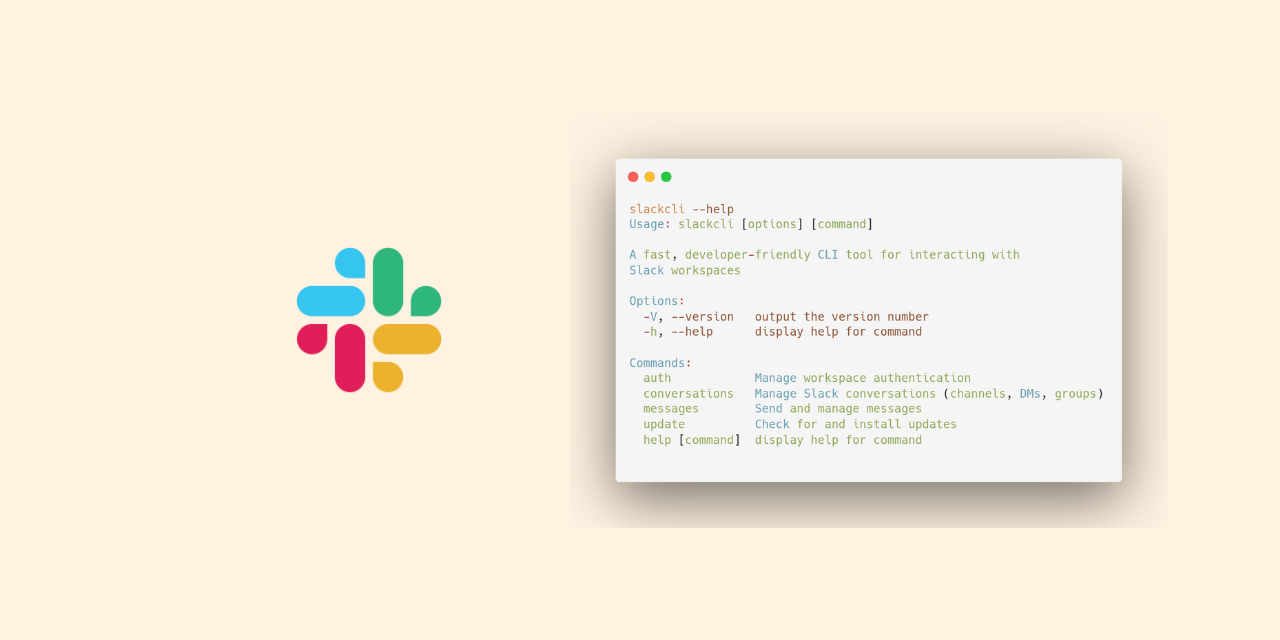
If you’ve ever needed to interact with Slack programmatically — for automation, AI agents, or quick terminal access — you know the friction: switching between the browser and desktop app, creating Slack apps, juggling OAuth tokens. SlackCLI (slackcli.dev) is an open-source Slack CLI that solves this by bringing Slack directly to your command line.
Is there a Slack CLI? (Short answer: yes, two.)
Before the guide, let’s clear up a common confusion.
Slack has an official CLI — literally called slack — documented at api.slack.com/automation/cli. It is built for app developers who are scaffolding Slack apps with the Deno Slack SDK or the Bolt frameworks. Its top-level commands are slack create, slack run, slack deploy — you use it to build the app people use, not to use Slack yourself.
SlackCLI (this post) is a separate, open-source Slack CLI for end users and automation. Its top-level commands are slackcli conversations read, slackcli messages send, slackcli auth login-browser. You use it to read channels, send messages, and plug Slack into scripts and AI agents — without writing or deploying a Slack app at all.
| Property | Slack’s official slack CLI | slackcli (this tool) |
|---|---|---|
| Purpose | Scaffold & deploy Slack apps | Use Slack from the terminal / automation |
| Primary users | App developers | Ops engineers, AI agents, power users |
| Auth | slack login (device flow to build apps) | Bot/user tokens or extracted browser tokens |
| Requires a Slack app? | Yes | No (with browser tokens) |
| Commands | create, run, deploy, env, trigger | conversations, messages, auth |
| Best for | Building /slash commands, workflows, bolt apps | Sending messages, reading channels, AI-agent context |
| License | Proprietary (Slack) | MIT (open source) |
| Install | curl -fsSL https://downloads.slack-edge.com/slack-cli/install.sh | bash | Single binary download from GitHub Releases |
Both tools can live on the same machine — their commands (slack vs slackcli) don’t collide.
What is SlackCLI?
SlackCLI is a fast, open-source Slack CLI that lets you interact with Slack workspaces directly from your terminal. Built with TypeScript and Bun, it targets:
- AI assistants — give agents Slack context and interaction capability
- Automation engineers — script workflows that touch Slack
- Developers — CLI access without switching to the browser or desktop app
- Data engineers — extract Slack data for processing and analysis
The problem: context switching kills productivity
Imagine you’re working in your terminal and need to:
- Check messages from a specific channel
- Send a quick update to your team
- Extract thread timestamps to reply programmatically
- Integrate Slack with an automation script or AI agent
The traditional flow is: open Slack app → find channel → copy/paste → switch back. Repeat endlessly. For developers building automation or AI agents that need Slack context, it’s even worse: create a Slack app, configure OAuth scopes, install, manage tokens, handle permissions.
SlackCLI eliminates all of that.
Why SlackCLI? Key benefits
1. Dual authentication: choose your style
Standard tokens (production)
- Official Slack app tokens (
xoxb/xoxp) - Recommended for team deployments
- Long-term, stable authentication
Browser tokens (quick start)
- Extract tokens from your browser session (
xoxd/xoxc) - No Slack app creation required
- Perfect for personal automation
- Uses your existing user permissions
Learn how to extract browser tokens.
2. Multi-workspace management
Work across multiple Slack workspaces seamlessly:
# List all authenticated workspaces
slackcli auth list

# Switch between workspaces
slackcli conversations list --workspace="Work Team"
slackcli conversations list --workspace="Side Project"
3. JSON output for automation
Integrate with scripts or AI agents. Get structured JSON output with thread timestamps:
# Get JSON with thread timestamps for replies
slackcli conversations read C1234567890 --json

# Output includes ts and thread_ts for programmatic replies
{
  "messages": [
    {
      "ts": "1762709049.367939",
      "thread_ts": "1762709049.367939",
      "text": "Message content",
      "user": "U1234567"
    }
  ]
}
4. Fast & lightweight
Built with Bun, SlackCLI starts in < 100 ms. Single binary distribution — no dependencies to install.
How it works
graph LR
    A[User/AI Agent] -->|Commands| B[SlackCLI]
    B -->|Browser Tokens| C[Slack API]
    B -->|Standard Tokens| C
    C -->|JSON/Text| B
    B -->|Formatted Output| A

    D[Multiple Workspaces] -->|Stored| E[~/.config/slackcli/]
    B -->|Reads| E
SlackCLI acts as a bridge between your terminal (or automation scripts) and Slack’s API, supporting both authentication methods and managing multiple workspace credentials securely.
Installation
Linux / macOS:
# Download and install
curl -L https://github.com/shaharia-lab/slackcli/releases/latest/download/slackcli-linux -o slackcli
chmod +x slackcli
mkdir -p ~/.local/bin && mv slackcli ~/.local/bin/

# Verify installation
slackcli --version
Windows:
Download slackcli-windows.exe from the latest release.
Quick start: browser-token authentication
The fastest way to get started (no Slack app needed):
# 1. Extract tokens from your browser (see guide in README)
slackcli auth extract-tokens

# 2. Login with extracted tokens
slackcli auth login-browser \
  --xoxd="xoxd-YOUR-TOKEN" \
  --xoxc="xoxc-YOUR-TOKEN" \
  --workspace-url="https://yourteam.slack.com"

# 3. Start using SlackCLI
slackcli conversations list
Send a Slack message from the command line
This is the single most requested Slack CLI capability. SlackCLI makes it a one-liner.
Send to a channel
slackcli messages send \
  --recipient-id=C1234567890 \
  --message="Deployment v2.1.0 completed"
Send a DM
slackcli messages send \
  --recipient-id=U0ABCDEF12 \
  --message="Hey, can you review #pr-42 today?"
Reply in a thread
slackcli messages send \
  --recipient-id=C1234567890 \
  --thread-ts="1762709049.367939" \
  --message="Acknowledged — ETA 30 min."
Pipe content from stdin
kubectl rollout status deployment/api | \
  slackcli messages send --recipient-id=C1234567890 --stdin
Read Slack messages from the CLI
Read a channel, a DM, or a thread — with pagination, time filters, and JSON output.
Read the latest 50 messages
slackcli conversations read C1234567890 --limit=50Read as JSON (for scripts and AI agents)
slackcli conversations read C1234567890 --limit=50 --jsonThe --json output exposes ts, thread_ts, user, and text for every message — enough for an agent to post a threaded reply without any further API calls.
Read messages since a timestamp
# All messages in the last hour
slackcli conversations read C1234567890 --since="1h"

# All messages since a specific Unix ts
slackcli conversations read C1234567890 --since="1762700000"
Read a thread
slackcli conversations read C1234567890 --thread-ts="1762709049.367939"Slack CLI for AI agents
SlackCLI is designed to be a first-class Slack interface for AI agents (Claude, ChatGPT, Cursor, any LLM with shell access).
Read + summarize + reply in one agent turn
# Agent fetches recent team discussion
slackcli conversations read C1234567890 --limit=50 --json | \
  jq -r '.messages[].text' | \
  ai-agent summarize
Automated status updates
#!/bin/bash
# Send deployment notification
slackcli messages send \
  --recipient-id=C1234567890 \
  --message="Deployment v2.1.0 completed successfully"
Thread monitoring and replies
# Get thread timestamp of the most recent message
THREAD_TS=$(slackcli conversations read C1234567890 --json | \
  jq -r '.messages[0].ts')

# Reply to that thread
slackcli messages send \
  --recipient-id=C1234567890 \
  --thread-ts="$THREAD_TS" \
  --message="Acknowledged"
Real-world AI-assistant prompt
“Using SlackCLI, read the last 50 messages from #engineering (C1234567890), summarize the key discussion points, identify action items, and reply to thread 1762709049.367939 acknowledging the tasks with an ETA.”
The agent executes slackcli conversations read … --json, parses the JSON, drafts a summary, and calls slackcli messages send --thread-ts=… — no Slack app, no OAuth, just two CLI invocations.
Data extraction for analysis
# Export channel messages to JSON
slackcli conversations read C1234567890 --limit=1000 --json > messages.json

# Filter by user with jq
jq '.messages[] | select(.user == "U1234567")' messages.json
Core commands at a glance
Authentication
slackcli auth login              # Standard tokens
slackcli auth login-browser      # Browser tokens
slackcli auth list               # List workspaces
slackcli auth set-default T123   # Set default workspace
Conversations
slackcli conversations list                    # List all channels/DMs
slackcli conversations list --types=im         # List only DMs
slackcli conversations read C123               # Read messages
slackcli conversations read C123 --json        # Get JSON output
Messages
slackcli messages send --recipient-id=C123 --message="Hello!"
slackcli messages send --recipient-id=U456 --message="DM"
slackcli messages send --recipient-id=C123 --thread-ts="123.456" --message="Reply"
Auto-update
slackcli update check    # Check for updates
slackcli update          # Install latest version
Security & privacy
- Credentials stored locally in
~/.config/slackcli/with0600permissions - No telemetry — data stays on your machine
- Open source — audit the code on GitHub
- Browser tokens expire — use standard tokens for production
Technical architecture
- Runtime: Bun v1.x (fast JavaScript runtime)
- Language: TypeScript (type-safe)
- CLI framework: Commander.js
- Slack SDK:
@slack/web-api+ a custom HTTP client for browser tokens
Distribution: single compiled binary per platform, no Node.js required (~100 MB including Bun runtime).
Roadmap
Current version: v0.1.1. Coming soon:
- File upload / download
- Reaction management
- User and channel search
- Interactive REPL mode
- Shell completion (bash, zsh, fish)
- MCP (Model Context Protocol) server mode
FAQ
Is there a Slack CLI?
Yes — two. Slack’s official slack CLI is for scaffolding Slack apps. SlackCLI (this tool) is an open-source Slack CLI for reading channels, sending messages, and wiring Slack into automation and AI agents.
Does Slack have an official CLI? Yes — at api.slack.com/automation/cli. It’s for app developers, not for using Slack from the terminal.
What’s the difference between SlackCLI and Slack’s official CLI?
Slack’s slack CLI scaffolds and deploys Slack apps (slack create, slack run, slack deploy). SlackCLI reads and sends messages (slackcli conversations read, slackcli messages send). Different problems, different commands — they can coexist.
Can I send a Slack message from the command line?
Yes — slackcli messages send --recipient-id=C123 --message="Hello".
Can I use a Slack CLI with AI agents?
Yes — the --json mode exposes ts / thread_ts, so an agent can read a channel, summarize it, and post a threaded reply in two commands.
Get started
- Website: slackcli.dev
- Repository: github.com/shaharia-lab/slackcli
- Documentation: slackcli.dev/docs
- Latest release: GitHub Releases
- License: MIT
Questions or suggestions? Open an issue on GitHub.