Bangla Keyboard for Linux: Bijoy, Bijoy 52 & Unibijoy on Ubuntu (with Layout Chart)
Bangla keyboard guide for Linux — Bijoy, Bijoy 52 (Bayanno), and Unibijoy Bengali layouts explained with the key-map chart and a step-by-step Ubuntu 24.04 install.
On this page ▾
Want to type Bengali (Bangla) on Linux with the familiar Bijoy / Unibijoy keyboard layout? This is a complete guide — what the layouts are, how they differ, and how to install Bengali typing on Ubuntu 24.04 in about 5 minutes.
Last updated April 2026. Verified on Ubuntu 24.04 LTS. The same steps work on Ubuntu 22.04 LTS, Debian 12, Linux Mint, Fedora 39+, and Pop!_OS.
What is the Bijoy / Unibijoy keyboard layout?
Three Bengali layouts get mentioned interchangeably — they are not the same thing:
| Layout | Who made it | Output encoding | Paid? | Best place to use it |
|---|---|---|---|---|
| Bijoy (classic) | Mostafa Jabbar, 1988 | ANSI / Bijoy encoding | Paid on Windows (Bijoy Bayanno) | Legacy Windows documents |
| Bijoy Bayanno | Ananda Computers, 2009+ | ANSI; Unicode in newer builds | Yes | Windows users already invested in Bijoy |
| Unibijoy | Community / Avro project | Unicode | Free | Everywhere modern (Linux, web, macOS, phones, Windows) |
| Unijoy | Mehdi Hasan Khan (Avro), 2003 | Unicode | Free | Avro Keyboard on Windows; same key map as Unibijoy |
Bijoy is a fixed layout — each English key maps to a specific Bengali letter. That’s different from Avro Phonetic, where you type “bangla” and the software converts it to “বাংলা”. If you learned to type Bengali by muscle memory in school or at work in Bangladesh, you learned Bijoy.
Unibijoy is the modern, Unicode-compatible variant of Bijoy. Same physical layout — same key positions for every letter — but it outputs Unicode text that works everywhere (web, Google Docs, WhatsApp, Slack, phones), not just on systems with a Bijoy ANSI font installed. On Linux, the IBus input method ships Unibijoy under the name “Bengali (Unijoy)”.
If you want the Bijoy layout on Linux (or the web, or any modern tool), you want Unibijoy. That’s what this guide installs.
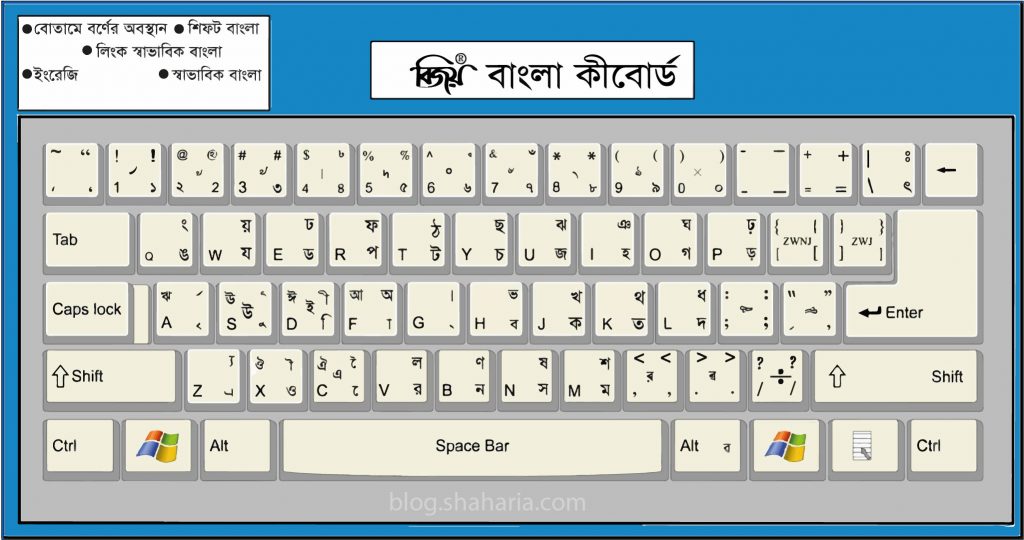
Bijoy / Unibijoy key map
This is the key map you’ll use once the input source is enabled:
Bijoy Unibijoy Bengali keyboard layout key map
Notes:
- Vowels live on the right half, consonants on the left — same as classic Bijoy.
Ginserts the Bengali full stop।(dari).- Numeric keys
0–9auto-convert to Bengali numerals০–৯when the Bengali layout is active. - Shift + a key produces the corresponding conjunct or aspirated form where applicable.
- If you already know Bijoy Bayanno, every key is in the same place.
Quick installation on Ubuntu 24.04 (Bengali Unibijoy)
Run these commands in a terminal (Ctrl + Alt + T):
1. Update the system
sudo apt update
sudo apt upgrade
2. Install IBus + m17n
sudo apt install ibus ibus-m17n m17n-dbibus— Intelligent Input Bus (the framework that handles input methods)ibus-m17n— IBus engine that loads m17n-db keyboard definitionsm17n-db— Multilingual text database containing the Bengali (Unijoy / Unibijoy) layout
3. Enable IBus as the default input method
im-config -n ibus
ibus restart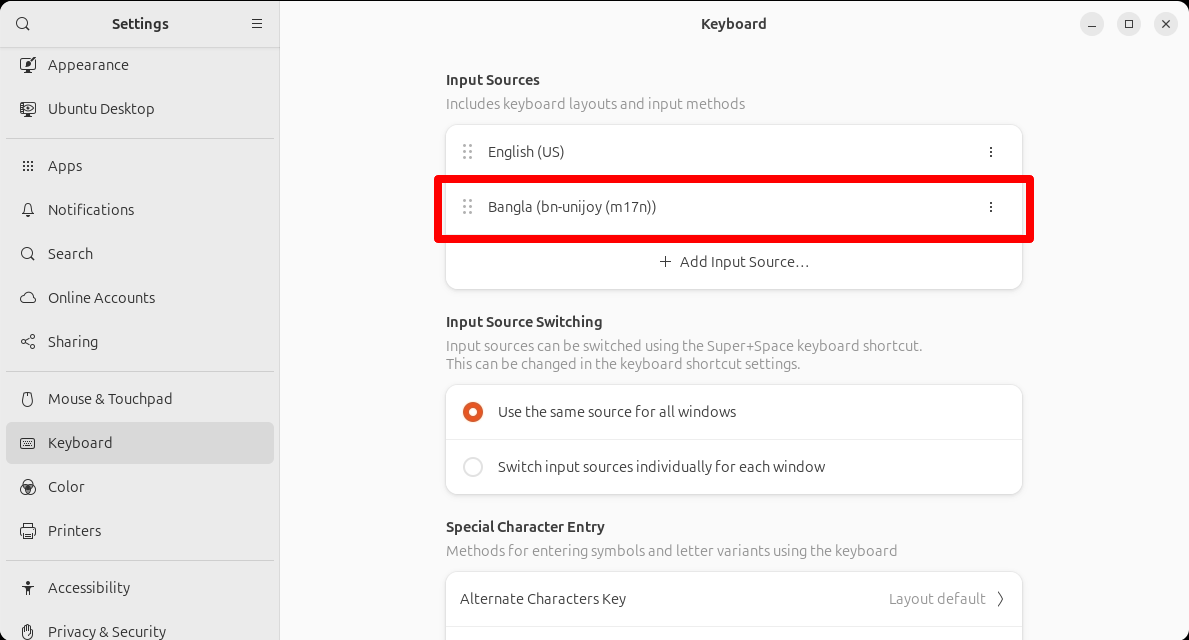 IBus Bengali input method on Ubuntu 24.04
4. Add the Bengali (Unijoy) input source
- Open Settings → Keyboard.
- Under Input Sources, click the + button.
- Click Other.
- Search for Bengali.
- Select “Bengali (Unijoy)” (this is the Unibijoy / Bijoy layout).
- Click Add.
5. Start typing Bengali
- Press Super + Space to switch between English and Bengali.
- Numerals
0–9automatically convert to Bengali numerals০–৯. - Type G for the Bengali full stop (dari)
।.
That’s it — you can now type Bengali on Ubuntu. বাংলায় টাইপ করুন!
Troubleshooting
”Bengali (Unijoy)” doesn’t appear in Input Sources
Most of the time this means m17n-db didn’t install cleanly. Fix:
ibus-setupAdd Bengali from the Input Method tab, then log out and back in so GNOME reloads the input method list.
If ibus-setup itself isn’t found:
sudo apt install --reinstall ibus ibus-m17n m17n-dbNothing happens when I press Super+Space
Open Settings → Keyboard → View and Customize Shortcuts → Typing, and confirm that “Switch to next input source” has a shortcut bound. Some minimal GNOME setups leave it unset.
Letters appear as boxes or tofu
You’re missing a Bengali Unicode font. Install at least one:
sudo apt install fonts-beng fonts-beng-extraIBus stops working after suspend/resume
Known GNOME + IBus issue. Quick fix: ibus restart from a terminal. Permanent fix: run IBus as a user service (systemctl --user enable ibus.service).
Not on Linux? (Windows / macOS)
If you’re on a different OS, these are the battle-tested options:
| OS | Tool | Layout |
|---|---|---|
| Windows | Avro Keyboard (free) + Unibijoy layout | Unibijoy / Bijoy (Unicode) |
| Windows | Bijoy Bayanno (paid) | Bijoy (ANSI + Unicode) |
| macOS | Avro Keyboard for macOS | Unibijoy / Bijoy |
| Android | Gboard → Languages → Bangla (Bijoy) | Bijoy (Unicode) |
| iOS | Settings → General → Keyboard → Add New Keyboard → Bengali | Phonetic (Apple default) |
If you were looking for the Windows install guide specifically, I have a dedicated walkthrough for installing the Unibijoy layout in Avro Keyboard on Windows.
Bijoy vs Unibijoy vs Unijoy — which should I use?
- I learned Bijoy at school / work and want it on Linux. → Unibijoy (
Bengali (Unijoy)in IBus). - I use Windows and own Bijoy Bayanno. → Stay on Bijoy Bayanno if you want; use Unibijoy when sharing docs on the web so you don’t hit font issues.
- I’m new to Bengali typing. → Try Avro Phonetic first (type “bangla” → “বাংলা”). If you want the classic fixed layout, learn Unibijoy.
- I need Bengali in a Docker container / WSL / SSH session. → Unibijoy via IBus works through most of these; plain terminal emulators may not render conjuncts perfectly.
FAQ
What is the Bijoy keyboard layout? A fixed Bengali layout from 1988 mapping every Bengali letter to a specific key on a QWERTY keyboard. The de-facto standard in Bangladesh.
What’s the difference between Bijoy and Unibijoy? Same key map, different output. Bijoy produces ANSI/legacy Bengali; Unibijoy produces Unicode.
Can I use Bijoy on Linux? Yes — as Unibijoy via IBus + m17n. That’s exactly what this guide sets up.
How do I type Bengali on Ubuntu?
Install ibus ibus-m17n m17n-db, run im-config -n ibus, add “Bengali (Unijoy)” in Settings → Keyboard → Input Sources.
Is Bijoy Bayanno free? No, it’s paid (Windows). Unibijoy covers the same use case for free on Linux, macOS, and Windows (via Avro).
Does this work on Ubuntu 22.04? Yes. Same packages, same steps.
Related posts
Happy typing — বাংলায় টাইপ করুন!