Avro Keyboard Layout: UniBijoy + Bijoy Layout Chart & Free Download (Windows)
Avro Keyboard layout — free UniBijoy / Bijoy Bengali layout for Avro on Windows. Includes the visual Bijoy key map, install guide, and how to switch from Avro Phonetic to Bijoy.

On this page ▾
Updated May 2026 — verified against Avro Keyboard 5.6.0 (released Feb 2026). Download still works; compatibility table refreshed.
If you’re used to the classic Bijoy keyboard layout but want free, Unicode-compatible Bengali typing on Windows, the UniBijoy layout for Avro Keyboard is what you want. It uses the exact same key positions as Bijoy — so your muscle memory transfers perfectly — but outputs Unicode text that works on every modern website, app, and phone.
This post gives you the free UniBijoy download, the step-by-step install, and the visual Bijoy / UniBijoy layout chart.
Switch from Avro Phonetic to Bijoy layout in 2 minutes
If you’re already on Avro Keyboard and want to switch from Avro Phonetic to the Bijoy (UniBijoy) layout, you don’t need to reinstall anything — Avro can hold both layouts at once.
- Download
UniBijoy.zipand double-clickUniBijoy.avrolayout(Avro auto-installs it). - Right-click the Avro tray icon → Exit, then start Avro again.
- Click the layout name in the Avro indicator (top-right of the Avro popup) and pick UniBijoy.
That’s the “Avro to Bijoy” switch — your Avro Phonetic shortcut is still there if you ever want it back. Full layout chart is below.
Download UniBijoy keyboard layout
Download UniBijoy.zip (≈150 KB) — contains UniBijoy.avrolayout, ready to install into Avro Keyboard.
MIT-licensed community layout. Works on Avro Keyboard 5.1.0 through 5.6.0 (current stable as of April 2026).
Avro Keyboard compatibility table
The .avrolayout format has been stable since Avro 5.1.0. The UniBijoy layout works with every version listed below. If you’re starting fresh, download the latest Avro (5.6.0).
| Avro version | Released | UniBijoy compatible | Download |
|---|---|---|---|
| Avro 5.6.0 | Feb 2026 | Yes | Official (omicronlab.com) |
| Avro 5.5.0 | 2020 | Yes | setup_avrokeyboard_5.5.0.exe |
| Avro 5.1.0 | 2014 | Yes | setup_avrokeyboard_5.1.0.exe |
| Avro 4.5.3 | Archived | Yes (untested) | Older builds are no longer officially hosted — use 5.6.0 instead. |
Recommendation: Install Avro 5.6.0 from OmicronLab’s official site. Older versions are listed for people maintaining legacy systems — don’t install 5.1.0 if you have a choice.
Install UniBijoy in Avro Keyboard — step by step
The whole install takes under three minutes.
1. Download and install Avro Keyboard
Grab Avro 5.6.0 from OmicronLab and run the installer. Avro is free and works on Windows 7, 8, 8.1, 10, and 11 (both 32-bit and 64-bit).
2. Download the UniBijoy layout
UniBijoy.zip — 150 KB, contains one file: UniBijoy.avrolayout.
3. Extract the ZIP
Right-click UniBijoy.zip → Extract All (or use 7-Zip, WinRAR, or Windows’ built-in extractor). You’ll get a single file: UniBijoy.avrolayout.
4. Double-click UniBijoy.avrolayout
Windows recognises the .avrolayout extension (registered by Avro) and hands the file to Avro, which installs the layout into your profile. A small confirmation dialog appears.
5. Restart Avro and select UniBijoy
Right-click the Avro icon in the system tray → Exit. Start Avro again. In the layout selector (the layout name next to the on-screen indicator), choose UniBijoy.
You’re done. Start typing.
Avro keyboard layout chart (Bijoy / UniBijoy key map)
This is the Avro keyboard layout chart for the UniBijoy / Bijoy layout. Every Bengali consonant, vowel, and modifier maps to a specific English key — identical to classic Bijoy. Save it as a wallpaper while you’re learning.
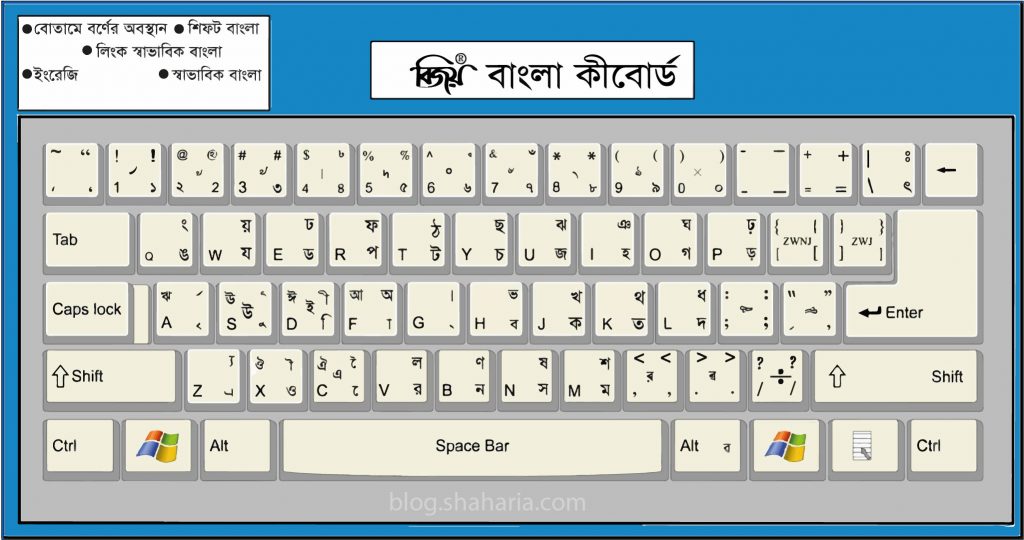
Avro keyboard layout chart — UniBijoy / Bijoy Bengali key map (1024×540). Free to download and reuse.
Quick reference:
- Vowels → right half of the keyboard.
- Consonants → left half.
G→ Bengali full stop।(dari).- Digits
0–9→ Bengali numerals০–৯. - Shift + key → aspirated / conjunct forms.
If you can already touch-type Bijoy on Windows, every key is in the same place.
UniBijoy vs. Bijoy vs. Avro Phonetic
| Layout | Type of layout | Output encoding | Free | Fastest way to learn |
|---|---|---|---|---|
| UniBijoy | Fixed (Bijoy key positions) | Unicode | Yes | If you already know Bijoy, zero relearning |
| Bijoy (Bayanno) | Fixed | ANSI + Unicode | No (paid) | Bangladesh schools and offices |
| Avro Phonetic | Phonetic / transliteration | Unicode | Yes | If you’re new to Bengali typing |
| Provat | Fixed (Avro’s own) | Unicode | Yes | If you’re learning Bengali fresh on Avro |
TL;DR: if you learned Bijoy at school or work, use UniBijoy — everything transfers. If you’re new, start with Avro Phonetic.
Why use UniBijoy with Avro Keyboard?
- Unicode output, classic Bijoy muscle memory. Best of both worlds.
- No font hassles. Avro + UniBijoy writes Unicode that every modern app and website already renders correctly.
- Completely free. No Bijoy Bayanno licence required.
- Works with every Avro feature — auto-correct, spell checker, Unicode-to-ANSI converter, custom fonts.
- Portable. Your UniBijoy muscle memory also works on Linux via IBus and macOS via iAvro.
Troubleshooting
Double-clicking UniBijoy.avrolayout does nothing
Avro isn’t installed or isn’t registered as the handler. Open Avro → Keyboard Layout menu → Install New Layout → pick UniBijoy.avrolayout.
UniBijoy doesn’t appear in the layout selector after install
Fully exit Avro from the system tray (right-click → Exit) and start it again. Reloading the tray icon isn’t enough — Avro only rescans layouts on a full restart.
Characters look like boxes / tofu
Install or pick a Bengali Unicode font: Noto Sans Bengali, SolaimanLipi, or Kalpurush. On Windows 10+ these are bundled.
Some conjunct forms don’t appear
Make sure you’re using UniBijoy (not Bijoy Classic inside Avro) and your target app supports Unicode complex script rendering. Microsoft Word, Chrome, and Notepad all do; a few legacy terminals don’t.
Want UniBijoy on Linux or macOS?
- Linux → Install Bengali Unibijoy keyboard on Ubuntu (IBus + m17n; no
.avrolayoutfile needed). - macOS → iAvro from OmicronLab ships the UniBijoy layout.
FAQ
What is UniBijoy? The Unicode version of the classic Bijoy Bengali keyboard layout. Same keys, Unicode output.
How do I install UniBijoy in Avro Keyboard?
Download UniBijoy.zip, extract UniBijoy.avrolayout, double-click it — Avro auto-installs the layout. Restart Avro and select UniBijoy.
Does UniBijoy work with the latest Avro (5.6.0)?
Yes. .avrolayout has been stable since Avro 5.1.0 and works through Avro 5.6.0.
Is UniBijoy free? Yes — free and open source.
Can I use it on Linux or macOS? Yes — use IBus on Linux (ships the same layout as “Bengali (Unijoy)”) or iAvro on macOS.
Related
- Bengali Unibijoy keyboard setup on Ubuntu — the same layout for Linux users.
- BTRC IMEI check (Bangladesh) — verify that the phone you’ll be typing Bengali on is legally registered with BTRC.
- Avro Keyboard (official download) — OmicronLab, the creators of Avro.
Questions? Drop a comment below and I’ll help.