Slack CLI for AI Agents — Give Claude Code, Cursor & Codex Read/Write Slack Access in 10 Minutes
Wire a Slack CLI into Claude Code, Cursor, and Codex in 10 minutes — read channels, post messages, summarise threads. xoxc browser tokens for personal automation, OAuth apps for production.
On this page ▾
TL;DR. One Slack CLI (
slackcli), three editors (Claude Code, Cursor, Codex CLI),xoxc/xoxdbrowser tokens for personal use orxoxb/xoxpfor production. Total setup: 10 minutes. Token-efficient JSON output keeps your context window clean.
If you spend half your day in Slack and the other half in Claude Code, Cursor, or Codex CLI, there’s an obvious win: let the AI agent read Slack itself. Don’t paste threads into the chat. Don’t summarise channels by hand. Wire a Slack CLI into the agent and let it pull what it needs.
This guide is the 10-minute version: install, authenticate, register with each editor, run five real workflows, then the security and production-deployment caveats. Skip to the section you need.
Why a Slack CLI (and not the official Slack CLI)?
Quick disambiguation. Slack ships its own CLI called slack (docs.slack.dev/tools/slack-cli). It’s for building and deploying Slack apps — slack create, slack run, slack deploy. It cannot read a channel, send a message ad hoc, or summarise a thread for an agent.
What you want is a third-party Slack CLI focused on using Slack: reading messages, posting messages, listing users. There are a few options as of May 2026:
| Tool | Stars | Auth modes | Output | AI-agent fit |
|---|---|---|---|---|
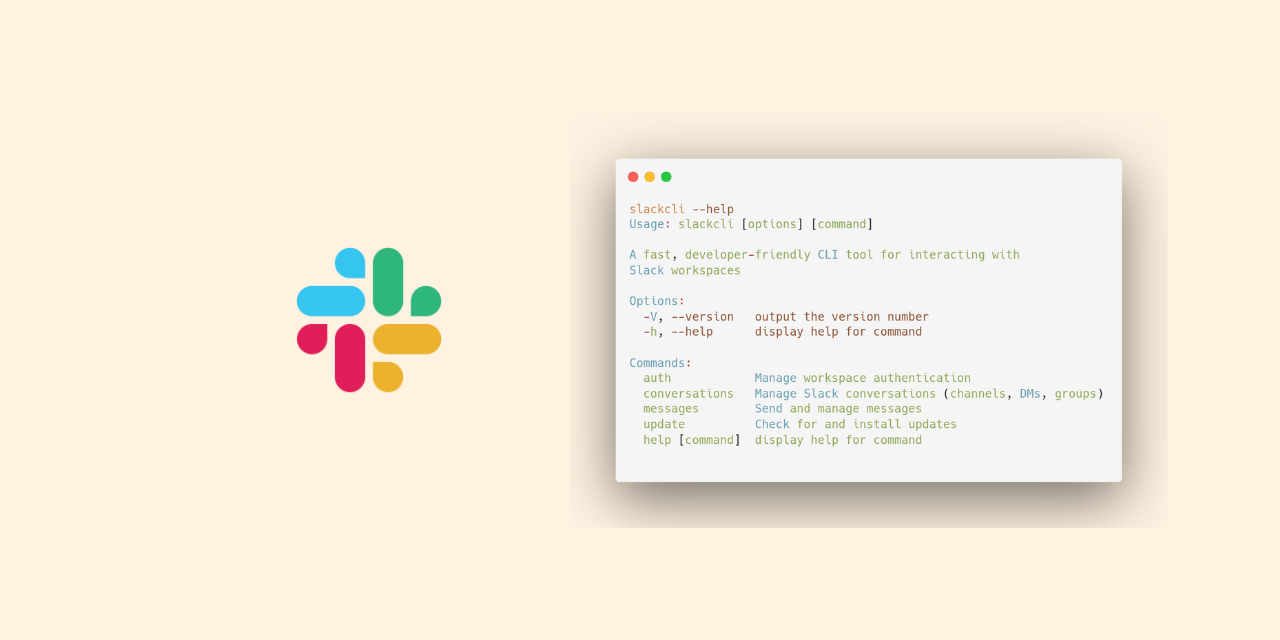
slackcli | ~500 | xoxc/xoxd browser tokens, xoxb/xoxp app tokens | --json for agents, human for terminal | Built for agents from day one |
stablyai/agent-slack | ~120 | xoxb only | JSON | OK, README only — no docs site |
| Composio Slack tool | n/a (SaaS) | OAuth via Composio | JSON over MCP | Heavy — pulls in Composio’s auth layer |
For this post I’ll use slackcli because (a) I wrote it, and (b) the JSON output is shaped specifically for LLM consumption — short keys, no nested arrays the model has to flatten, optional thread_ts fields exposed at the top level. If you’re using a different tool, the integration shape is identical; just swap the binary name.
If you want the CLI vs MCP comparison: an MCP server is great for long-lived agents that benefit from typed tool descriptors. A CLI is great when your agent is a one-shot shell-tool runner (Claude Code, Codex CLI, Cursor’s tool runner) and when you want JSON you can pipe into jq. Many teams ship both — same backend, two front-ends.
Step 1 — Install slackcli
The installation guide covers every platform; the short version:
macOS / Linux — Homebrew:
brew tap shaharia-lab/tap
brew install slackcli
Or grab a pre-built binary straight from GitHub releases (Linux x86_64 shown; swap -linux for -linux-arm64, -macos, or -macos-arm64 to match your platform):
curl -L https://github.com/shaharia-lab/slackcli/releases/latest/download/slackcli-linux -o slackcli
chmod +x slackcli
mkdir -p ~/.local/bin && mv slackcli ~/.local/bin/
Verify:
slackcli --version
# slackcli 0.7.0
Windows: download slackcli-windows.exe from the releases page and add it to PATH.
Step 2 — Authenticate
You have two options. Pick based on whose Slack you’re automating.
Option A — xoxc / xoxd browser tokens (personal automation)
Best for personal use on workspaces you own or where you have a verbal agreement with the admin to automate your own account. No Slack app to create, no OAuth dance.
-
Open Slack in a browser, log in, land on
app.slack.com. -
Open DevTools → Application tab → Cookies → copy the value of the
dcookie (that’s yourxoxd-…token, URL-decoded). -
DevTools → Network tab → filter by
slack.com/api, click any request, find thexoxc-…token in the request payload ("token":"xoxc-…"). -
Run:
slackcli auth login-browser \
  --xoxc=xoxc-YOUR-TOKEN \
  --xoxd=xoxd-YOUR-TOKEN \
  --workspace-url=https://yourteam.slack.com
Even easier: in DevTools right-click any Slack API request → Copy → Copy as cURL, then let slackcli parse the tokens out for you:
slackcli auth parse-curl --login
# paste the cURL command, press Enter twice
The detailed step-by-step (with screenshots) is in Using Slack browser session tokens with Go SDK, which also explains how the four token formats — xoxb, xoxp, xoxc, xoxd — relate to each other.
Option B — Slack app with xoxb / xoxp (production)
For shared automation, build a real Slack app. The minimum scopes for read+write are:
channels:history,channels:readgroups:history,groups:read(private channels)chat:writeusers:read
Add im:history, im:read, im:write if the agent should handle DMs. Add chat:write.customize if it should post under a friendly username/icon.
Install the app, copy the Bot User OAuth Token (xoxb-…), then:
slackcli auth login --token=xoxb-YOUR-TOKEN --workspace-name="My Team"Step 3 — Verify
slackcli conversations list --limit 5
slackcli conversations read C012345 --limit 10 --json | head -40
If both succeed, you’re set. The --json mode is what the agents will use; the human-readable mode is for you.
Step 4 — Wire it into each editor
Claude Code (~/.claude/settings.json)
{
  "permissions": {
    "allow": [
      "Bash(slackcli conversations list:*)",
      "Bash(slackcli conversations read:*)",
      "Bash(slackcli search messages:*)",
      "Bash(slackcli messages send:*)"
    ]
  }
}
Pre-approving these subcommands prevents Claude Code from prompting on every call. Drop messages send from the allowlist if you want a human in the loop for posts.
Cursor (Settings → Tools → Add Custom Tool)
- Name:
slackcli - Command:
slackcli - Default args:
--json - Description: “Read Slack channels, post messages, list users. Always run with —json for parseable output.”
Cursor’s tool runner appends arguments after the default ones, so any subcommand the model invokes will inherit --json automatically.
Codex CLI (~/.codex/config.toml)
[tools.shell]
enabled = true

[tools.shell.allowlist]
commands = ["slackcli"]
Codex auto-detects JSON in tool output, so you don’t need to force --json — the model will choose it when it wants structured data.
Five real agent workflows
These are the prompts I actually use day-to-day. All five work in Claude Code, Cursor, and Codex without further config — the agent figures out which slackcli subcommand to invoke.
1. Catch-up summary
“Read the last 50 messages in
#engineeringand#oncall, then give me a 5-bullet summary of what happened while I was off.”
The agent runs:
slackcli conversations read C0ENG --limit 50 --json
slackcli conversations read C0OPS --limit 50 --json
…then summarises. Works because the JSON output is small enough to fit in one context window for 100 messages.
2. Threaded reply
“There’s a thread in
#bug-reportsabout the auth 500s — read it, write a reply that explains the root cause from PR #1234.”
The agent reads the channel, finds the parent message’s ts, then:
slackcli messages send --recipient-id=C0BUG --thread-ts=1747000000.123456 \
  --message="Root cause: missing nil-check on session pointer; fixed in #1234."
The --thread-ts flag is the bit every agent gets right because it shows up cleanly in the JSON output of the read call.
3. Standup draft from your week’s activity
“Read my DMs and the channels I posted in this week, then draft a Monday standup.”
This one needs users:read to know which messages were yours; the agent filters the JSON for messages where user == <your-id> and summarises.
4. Triage notifications
“Find all messages where I’m mentioned recently, group them by urgency, and tell me which to handle first.”
Uses slackcli search messages "is:unread to:@me" --json (Slack search operators work in the query), then the agent sorts by presence of “urgent” / “blocker” keywords. slackcli conversations unread --json is the companion command when you’d rather sweep every channel with unread activity.
5. Auto-post deploys
In a CI script, not an interactive agent:
slackcli messages send --recipient-id=C0DEPLOYS --message=":rocket: Deployed v$VERSION to prod"This is the boring use case but it removes a Slack-app-and-webhook step.
Security — three guardrails I never skip
Guardrail 1: channel allowlist for messages send
slackcli has no built-in send allowlist, so enforce one yourself with a tiny wrapper that checks --recipient-id against a list you control and refuses anything else. Point your editor at this wrapper instead of slackcli. The agent can still read any channel it has token-level access to — the wrapper only constrains writes.
# ~/.local/bin/slackcli-guard
#!/usr/bin/env bash
ALLOW="C0ENG C0DEPLOYS C0BUGREPORTS"
if [[ "$*" == *"messages send"* ]]; then
  for id in $ALLOW; do [[ "$*" == *"--recipient-id=$id"* ]] && exec slackcli "$@"; done
  echo "blocked: recipient not in send allowlist" >&2; exit 1
fi
exec slackcli "$@"
If the agent goes off-script and tries to post to #exec-team, it gets an error, not a public-relations incident.
Guardrail 2: confirm-before-send (Claude Code)
Drop Bash(slackcli messages send:*) out of permissions.allow and let Claude Code prompt you on every send. The friction is fine — you’re posting in Slack, you can afford one extra keypress. For Cursor and Codex, set the equivalent flag (Cursor: “require confirmation”; Codex: [tools.shell.confirm]).
Guardrail 3: audit log
Wrap slackcli messages send in a tiny shim:
# ~/.local/bin/slackcli-audit
#!/usr/bin/env bash
exec 9>>"$HOME/.slackcli-audit.log"
echo "$(date -Iseconds) $*" >&9
exec slackcli "$@"
Then point your editor at slackcli-audit instead of slackcli. You get an append-only log of every command the agent ran, which is exactly the evidence you want when something goes sideways.
When to graduate from xoxc to a real Slack app
Browser tokens are personal and rotate when Slack invalidates your session. They’re also tied to you — if your colleague runs an agent with your tokens, every action looks like it came from your account. Move to a real Slack app when:
- You have more than one human running the agent against the same workspace.
- The agent runs without an interactive user present (CI, scheduled jobs, hosted MCP).
- You need an audit trail in Slack itself showing the bot acted, not the user.
- Your security team asks. They will.
The migration is mechanical: create a Slack app, install with the right scopes, swap slackcli auth login-browser for slackcli auth login --token=xoxb-…, done. Every other command works identically.
Honest comparison — when not to use this
This stack is wrong if:
- Your agent already speaks MCP. Plug in a Slack MCP server (e.g.
modelcontextprotocol/servers/slack) and skip the CLI layer. Less marshalling, persistent connection. - You need realtime push (the agent must react to new messages). CLIs are pull-based. Use Slack Events API + a webhook.
- You’re integrating into a non-coding agent (a chatbot in Slack itself). Use Slack’s Bolt framework, not a CLI.
- Compliance forbids browser tokens. Some workspaces require all automation to go through audited Slack apps. Skip Step 2 Option A entirely.
For the 80% case — a developer who wants their AI coding agent to read and write Slack — the CLI route is the fastest and the most debuggable.
Related
- SlackCLI for Claude Code: plugin and skill — the official plugin, so the agent gets the skill without the settings.json wiring above.
- Slack token formats explained (xoxb, xoxp, xoxc, xoxd) + using xoxc/xoxd in Go — the deep dive on browser tokens.
- SlackCLI: command-line tool for Slack automation — full CLI reference.
- Run Claude Code in Docker with network isolation — sandbox the agent so a bad prompt can’t exfiltrate Slack data.
Ten minutes from brew install slackcli to your agent posting a Slack thread. That’s the entire pitch.